

The steps for setting up IPTV on an Android device using the Lazy IPTV player will be explained in this guide.
This software makes it easier to use IPTV, a TV service based on technology. It doesn’t come with playlists already loaded, but it works as a client, making it easy and seamless to watch TV shows online. To use its features, you need to use playlists that are either formatted in m3u with specifications or xspf.
Click on the link below to get this app:
https://play.google.com/store/apps/details?id=com.lazycatsoftware.iptv&hl=en_US
How to make Lazy IPTV work with more IPTV channels
Step 1: Click on “New Playlist” and then choose “From Internet (by URL)” to add your M3U URL.
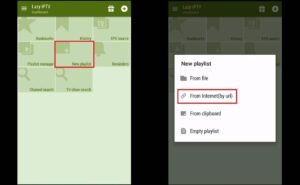
Step 2: Give your playlist a name in the “playlist’s name” field and add your M3U link in the “path to playlist file or URL” field. After that, click the “Save” button to finish the process.
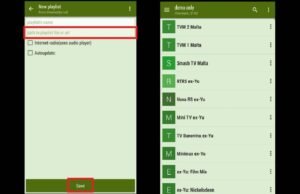
Step 3: Now your playlist should be added. It’s up to you to pick a group and a channel ahead of time.
What Lazy IPTV Can Do
- You can add m3u playlists from the device’s file system, the internet, or the clipboard, and they can be played in open view or via zip/gz.
- It can play HTTP and UDP streams, as well as YouTube and vk-video links.
- The built-in audio player can play Internet radio.
- There are several UDP proxies available, and you can switch between them right in the active playlist.
- Allows playlists to automatically update, using a cached copy if the most recent one isn’t available.
- The main screen can be changed and has a title-style view that lets you place playlists and frequently watched channels. It also has basic app functions and sorting options.
- Favourites features, such as the ability to create nested folders and group channels that are similar across different playlists.
We can’t wait to hear what you think about this article. Thank you ahead of time for your contribution!