

You can get this app from the Google Play Store by clicking on the link below:
https://play.google.com/store/apps/details?id=ru.iptvremote.android.iptv&hl=en_US
How to add IPTV channels to the “IPTV” app
Step 1: Get the app from the Google Play Store to begin.
Step 2: Click “EDIT” at the bottom of the screen.
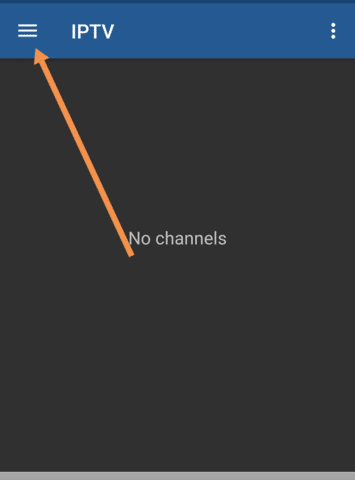
Step 3: Click on the plus sign.
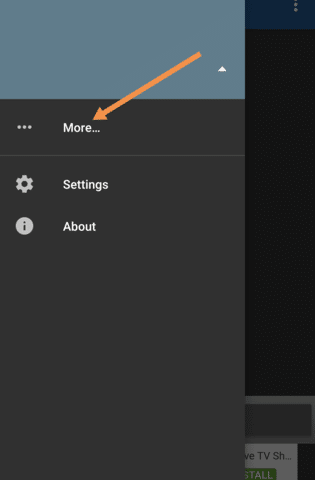
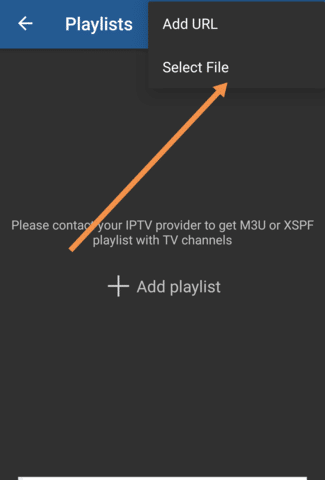
Step 4: Click “Add URL.” You can upload your M3U file or use a URL to add it from here.
Step 5: The list of channels will show up on your screen. You’ll be asked to install a compatible player, like an IPTV core player or MX player, before you can start playing.
Note: To get access to more advanced features, we strongly advise that you download the VLC media player from the Google Play Store and set it as your default streaming player.
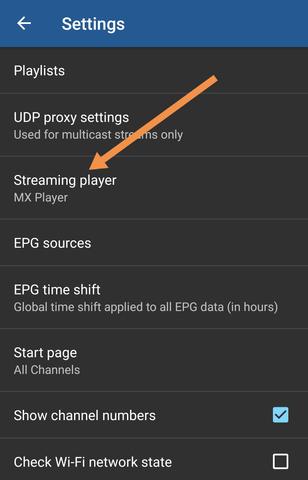
Step 6: Choose the VLC player to better enjoy watching.
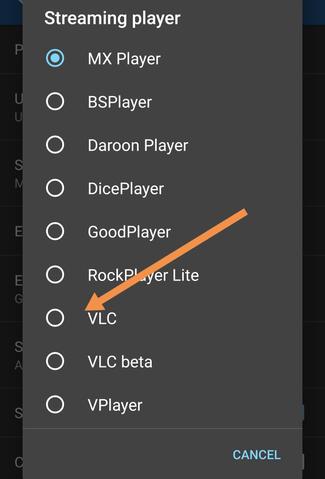
You will be asked to download the app when you start it up. You can start streaming your IPTV channels as soon as the download is done.
Your feedback is important to us, so please share your thoughts and ideas in the section below. The quality of our articles gets better thanks to your contributions. Thank you ahead of time for agreeing to take part.
Application Features of “IPTV”
Without a doubt, these are the features of the app:
- M3U and XSPF playlists can be played.
- Tracking the history of playlists
- Using a UDP proxy, you can play multicast streams (you’ll need to install a proxy on your LAN).
- You can choose to see TV channels in grid, list, or tile format.
- EPG support for both XMLTV and JTV
The Pro version has extra features like the ones below:
- Experience without ads
- ability to automatically reconnect to the streaming server if the connection drops for some reason (only works for HTTP streams)
- The app can be set to start up when the device does, which is helpful for set-top boxes.
- Play the last channel automatically
- Tracklist history that goes back further
Please feel free to ask any questions you have in the comments section if you need any more help.