

How can I configure Perfect Player for IPTV?
With the help of the Android app Perfect Player, you can stream IPTV channels to your preferred tablets, smartphones, and Smart TVs by simulating a set-top box. Note that there are no IPTV channels available in this application. In the settings section, you must add your own m3u playlists before you can add IPTV channels. What is M3U list?
Perfect Player is compatible with Microsoft Windows, Linux, and Android.

The following link will allow you to download this app: https://play.google.com/store/apps/details?id=com.niklabs.pp&hl=en America
How can I upgrade Perfect Player to include IPTV channels?
Step 1: Open the application on your device after it has finished downloading. On the main menu, click on “Settings“.
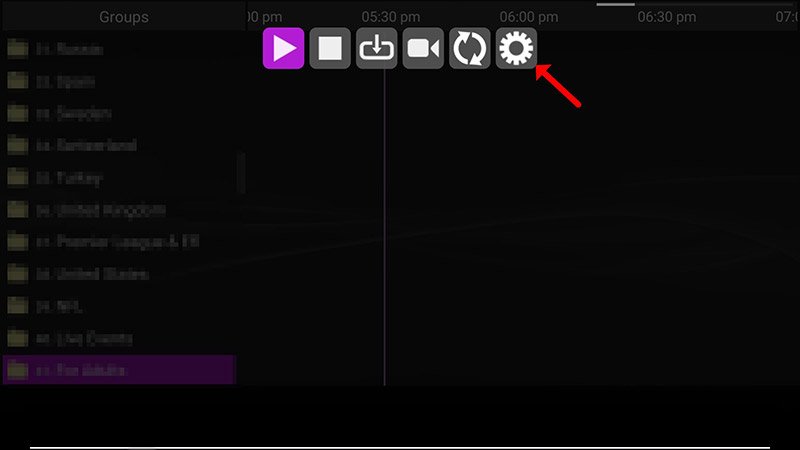
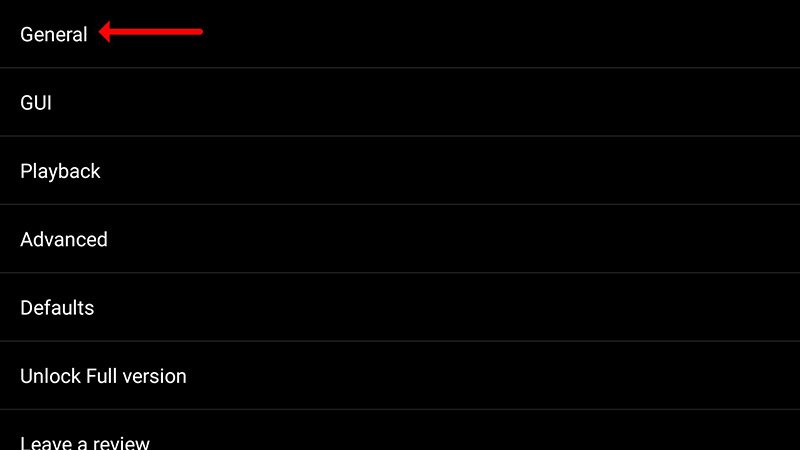
Step 2: Select “Playlist” under “General.”

Step 3: Click “OK” after entering your “M3U URL.”
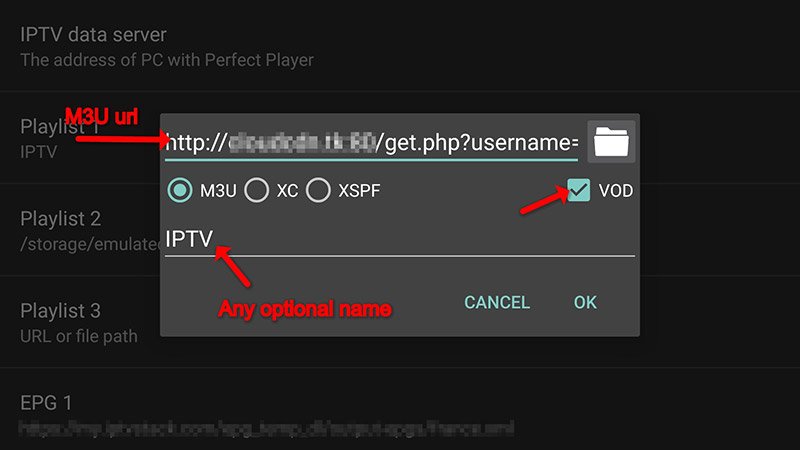
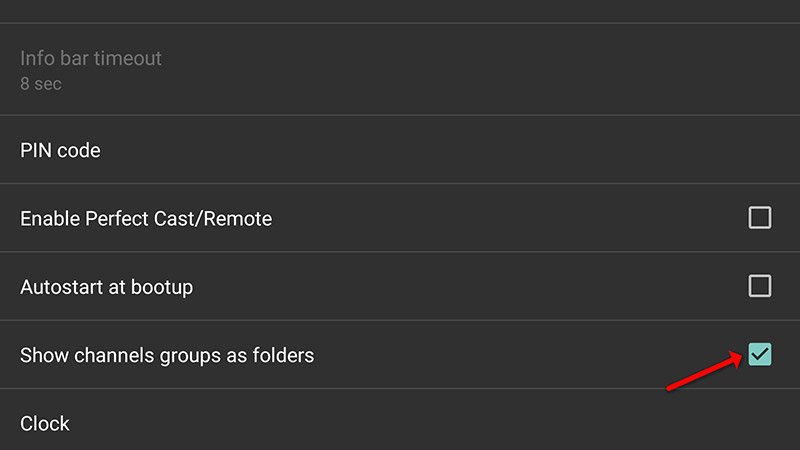
Step 4: Click “GUI” after pasting the M3U URL that your IPTV distributor supplied.

The fifth step is to select “Show channels groups as folders.”
Step 6: Go back to the main menu and watch as your favorite player app adds and updates channels.
Please be aware that in order to get the best playback experience, you should experiment with the different decoder settings listed below.
Problems with Playback
Select “Playback” from the settings.

You can choose the type of decoder and adjust the buffer size with Perfect Player if you’re experiencing problems with playback, stuttering, buffering, etc. A variety of decoder types are available under the playback settings.
The best default decoder is Auto, followed by HW+, Hardware, and SW if your connection is slow. You have a choice of buffer sizes ranging from 1 to 4, with 1 being the smallest and 4 being the largest.

How can EPG be added to Perfect Player?
If you think need further help, feel free to discuss it with us in the comments section down below.
Developed by iptvskypro.com