


Getting VLC to work better with IPTV by lowering the buffering
This guide shows you how to change the settings on your VLC media player so that buffering is less of a problem while you watch IPTV. The main goal is to make the cache bigger so that playback runs more smoothly. How to watch IPTV on VLC?

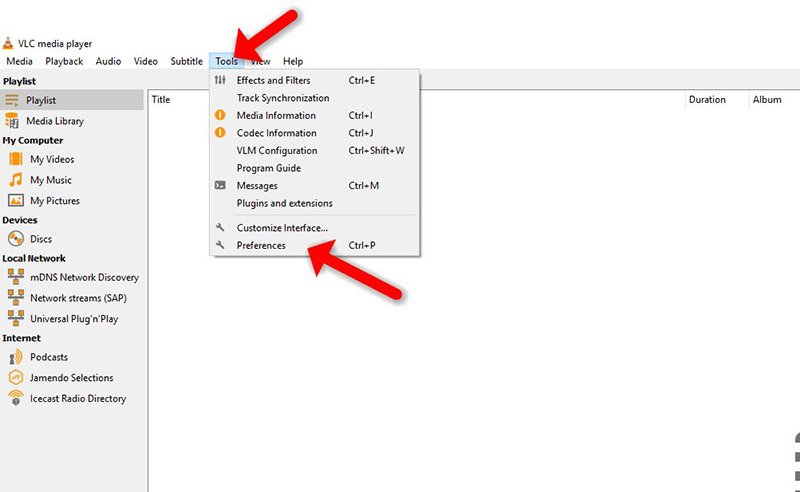
1. Getting to the VLC settings:
- Start up the VLC media player.
- Get to the menu that says “Tools.”
- The settings window will appear when you click “Preferences.”
2. Turning on the advanced settings:
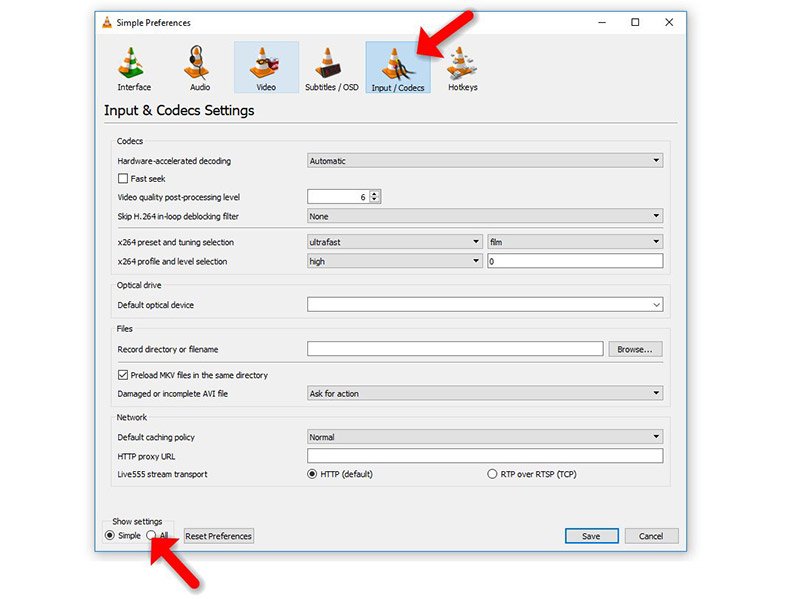
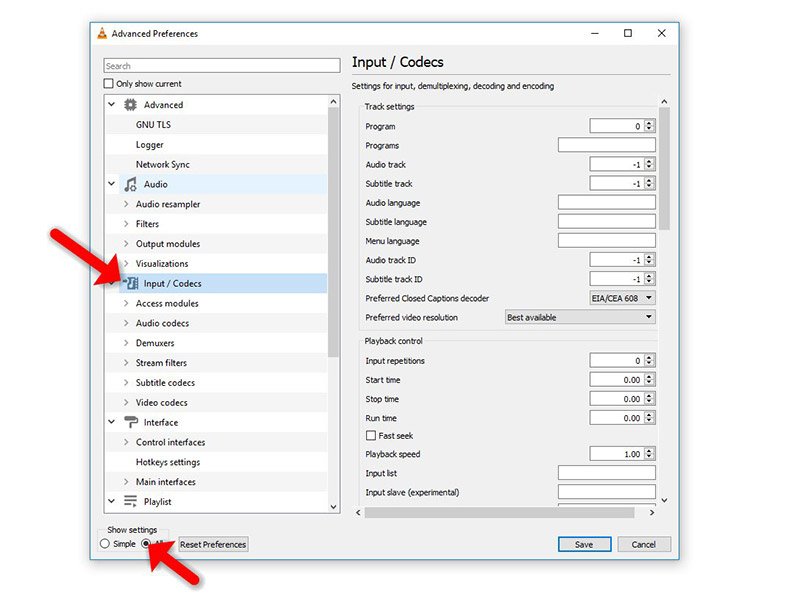
- Find the “Input/Codecs” option in the left sidebar of the preferences window and click on it.
- For a full view of all the settings, make sure the “All” option is at the bottom of the window.
3. Modifying Cache for Local IPTV Files ( Static M3U):
- Should your IPTV playlist reside locally (static M3U file), locate the “File Caching (ms)” option under the “Advanced” section on the right side.
- Measured in milliseconds, this value sets the data VLC pre-load amount before playback. One second of buffering results from a 1000 millisecond setting.
- Important Note: As VLC must buffer once more at the new position, increasing the cache size lowers buffering but causes a minor delay when searching within the content.
4. Changing Cache for Network IPTV Streams Dynamic M3U URL:
- Should your IPTV playlist be accessed from a network URL (Dynamic M3U), change the “Network Caching (ms)” option using the same guiding idea for local files.
Adjustment of Temporary Cache Size for Network Streams: Optional
This part talks about a different way to handle network streams (URLs) and certain file types (TS and M3U). Keep in mind that this is only a short-term fix that might not be needed if the previous steps fixed the buffering issues.
What to do:
-
Start up VLC and go to Network Stream:
- Start up the VLC media player.
- Go to the menu that says “Media.”
- “Open Network Stream” should be chosen.
-
Resize the cache based on how fast your internet is:
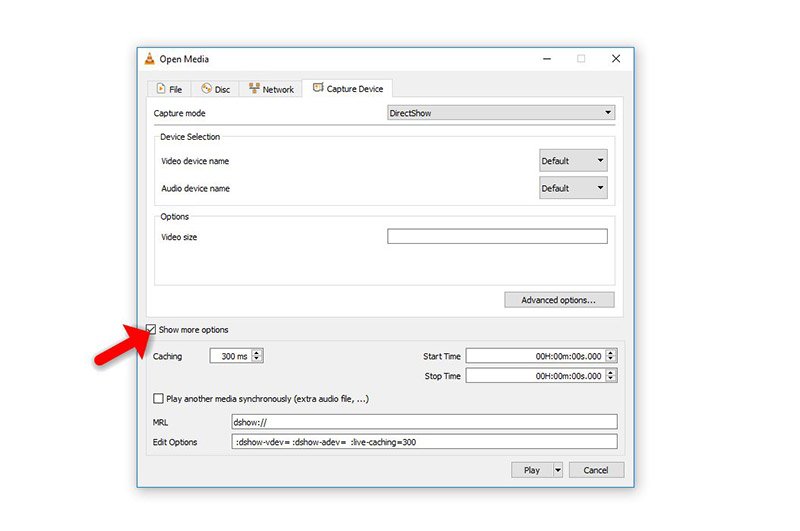
- In the field that’s there, type in the network URL you want to use.
- If you check the box next to “Show More Options,” you’ll see more settings.
- You can now change how big the cache is based on how fast your internet is. A faster internet connection lets you store more data in your cache without any major problems.
Note: This is only a short-term fix, and it might not work as well as changing the cache settings in the preferences, which was already explained.
Article by iptvskypro.com
[…] Click on the “Capture Device” tab in the new window. Pick “Desktop” from the “Capture mode” drop-down menu. How can I get the most out of VLC to watch IPTV? […]