


How can I use STBEmu to set up IPTV on Android devices?
One great way to enjoy your IPTV services is with set-top boxes. You can use an Android computer to mimic the hardware and interface of a Mag box if you don’t want to buy a Mag Set-top box like the model 254.
Please be aware that using this emulator requires a powerful device.
Expert users are the target audience for this app. It must be configured in order to function properly, and if you have never configured an IPTV box, it could be difficult for you to do so. Please be aware that the app will stop working if you make a simple configuration error.
We will demonstrate how to use STBemu on your device to watch IPTV in this tutorial.
This tutorial also explains how to set up STBemu Pro.
NOTE: We do not offer this application because it is not an official app and could be used by hackers to steal your IPTV subscription information.
Configure the STB Emulator
Step 1: Download the STB emulator app from the Play Store using the link below, then install it to move on to the next step.
STB Emulator :https://play.google.com/store/apps/details?id=com.mvas.stb.emu.free&hl=en
STB Emulator Pro : https://play.google.com/store/apps/details?id=com.mvas.stb.emu.pro&hl=en

Step 2: Choose “Settings” in the upper right corner.
On the greeting page, you have “Configure Application” if this is your first time opening the application.
Step 3: Choose “Profile.”
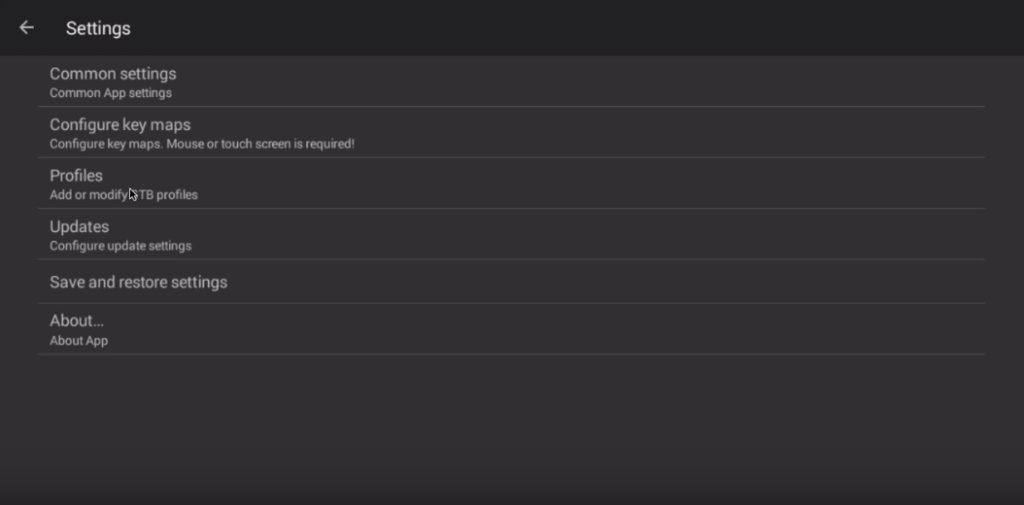
Step 4: Choose “New profile.”
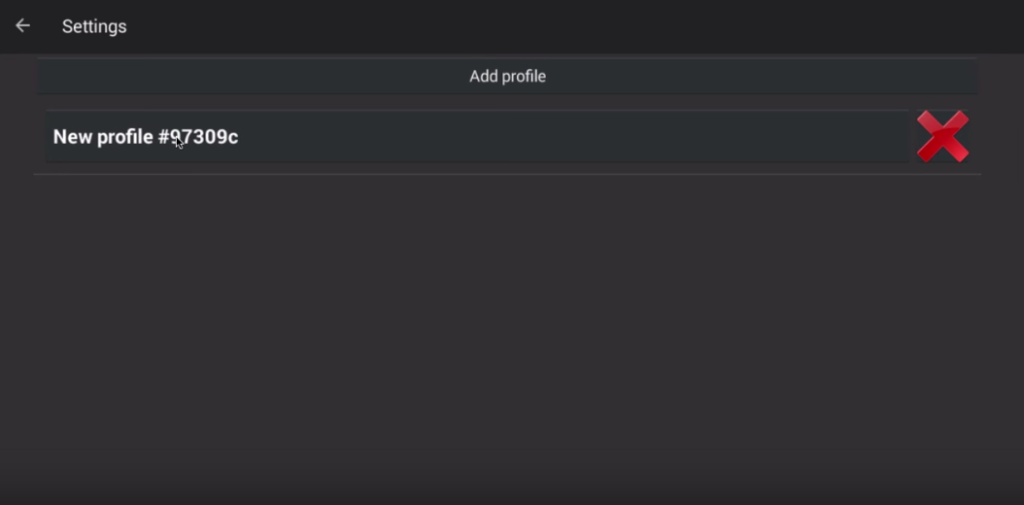
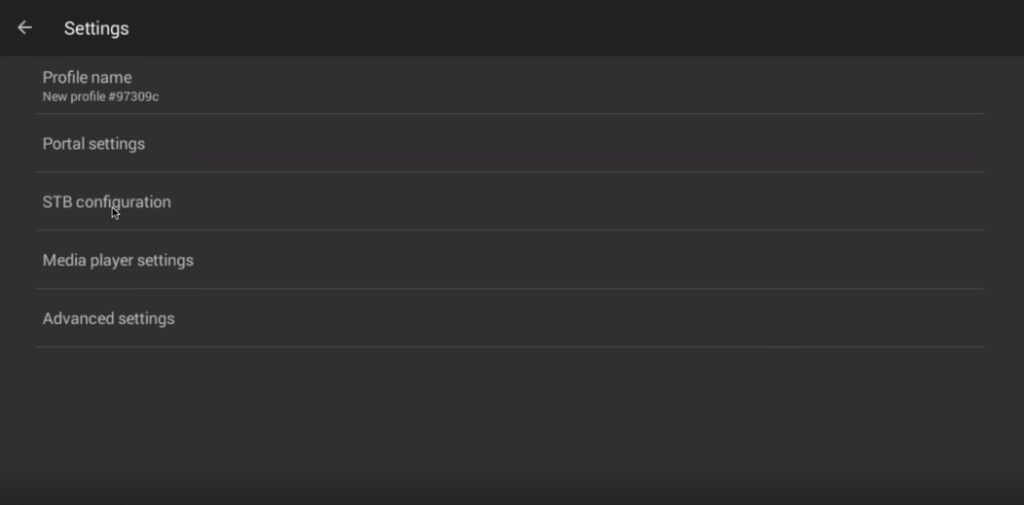
Step 5: Choose “STB Configuration” after entering any name in the profile name field.
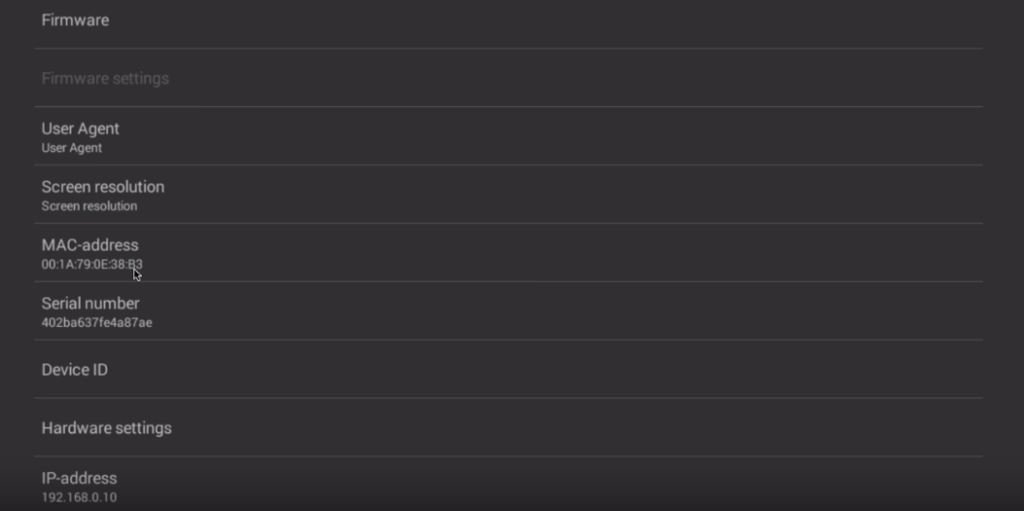
Step 6: Click this link to find your Mac address.
What is MAC address?
You will require a MAC address in order to link your device to your subscription.
It typically begins with “10:5A:33: ….” You should give your IPTV provider your entire MAC number.
A dashboard that allows you to modify your IPTV subscription and add the MAC is provided by privileged IPTV providers.
Additionally, if there isn’t a dashboard, you should speak with your IPTV provider about this.
Advice: If your MAC does not begin with “10:5A:33: …,”
Launch the application after turning on your device.
Choose System from the main menu, followed by System info > Network tab.
Put your Mac address’s last six characters in writing. For instance, if your address is 10:5A:33:03:E7:36, you should write 03:E7:36.
Enter 10:5A:33: in the text field, then your Mac address’s final six characters (10:5A:33:03:E7:36, for example).
Step 7: Go back, choose “Portal settings,” click “Portal URL,” and type in the Portal address that your IPTV distributor gave you.
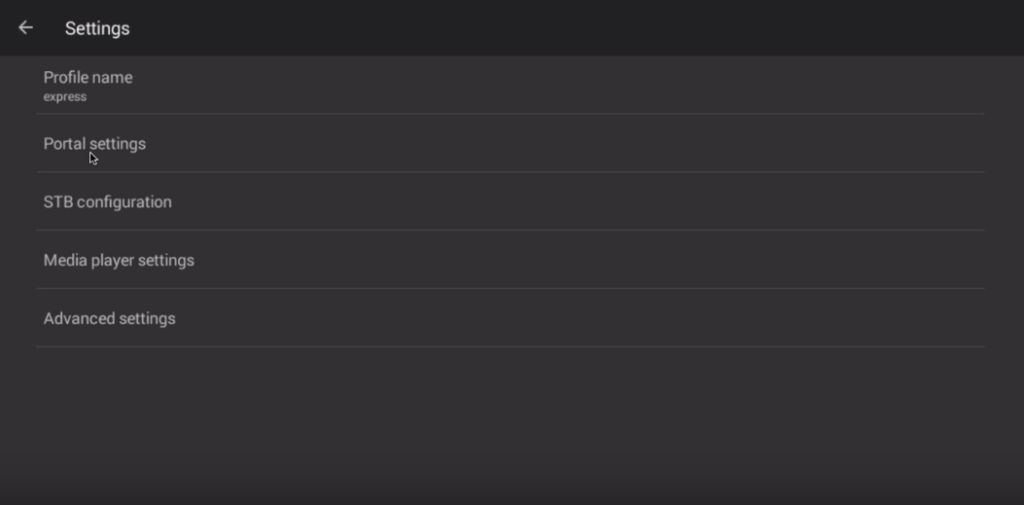
Go back and choose “Save and restore settings” in step eight.
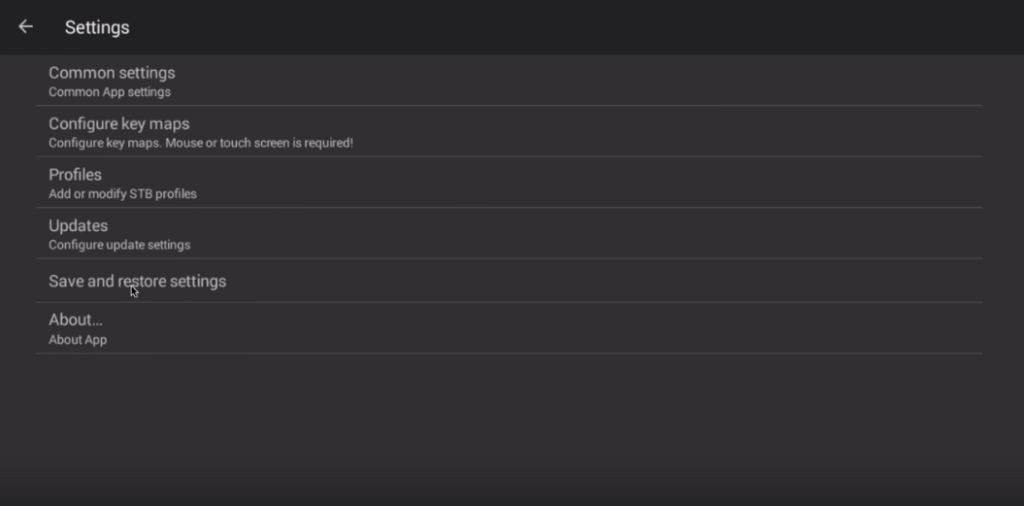
Choose “SAVE SETTINGS AND PROFILES” in step nine.
Ultimately, the portal will begin to load when you restart your device.
You’ve successfully configured an Android device to mimic an IPTV set-top box. You can now experience a set-top box without having to buy a Mag box. Because the STB emulator can be a little difficult to use, try shutting down and restarting the application or uninstalling and reinstalling it if you encounter any issues.
Developed by iptvskypro.com