

A powerful media player with an EPG allows seamless playback of IPTV channels on Windows Phone, Windows 10, and Xbox One. Import your M3U playlist from local or remote storage to start the experience. What is M3U?
Click on the link below to get this app:
https://www.microsoft.com/en-us/p/myiptv-player/9pjj2nmbf0tr
How to make the MyIPTV Player app work with more IPTV channels
To start, get the app from either the Microsoft Store, the Xbox Live Store, or the Windows Phone Store. As soon as the download is done, start the application.

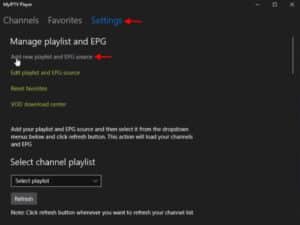
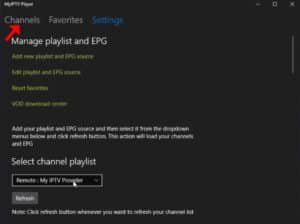
Step 2: Click “Settings” and then “Add new playlist and EPG source.” Now move on to the next step.
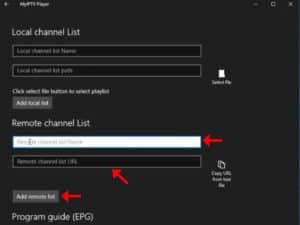
Step 3: Presently Navigate to the “Remote Channel List section.” In the initial field, provide a designation for your playlist, and in the subsequent field, enter your M3U playlist URL. Subsequently, click on “Add remote list” to advance to the subsequent section.
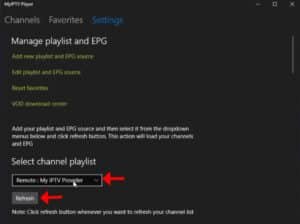
Step 4: Right now Once more, go back to the settings page and find the “Select channel playlist” section. Click on “Refresh” after picking the playlist you just added.
Step 5: Go to the “Channels” tab now. This is where you can start watching the channels you just added to your MyIPTV Player App.
What’s New in the MyIPTV Player App
- For smooth playback, both HTTP Live Streaming (HLS) and MPEG TS are supported.
- Based on channel data, channels are automatically put into groups.
- Electronic Program Guide (EPG) support is built in, and you can record channels.
- Built-in feature that makes it easy to manage favorites.
- being able to support multiple channel playlists at the same time.
- Being able to save Video on Demand (VOD) streams to watch later when you’re not online.
- The download center and history for VOD files are easy to get to.
- There are different channel filtering options, such as PIN protection for limited access.
- You can choose a media player that works with either the VLC library or the built-in Windows 10 media player.
- It is easy to add channels by hand in the app’s settings.
You can tell us what you think about this article in the section below for comments. This will help us make our articles better. Thank you ahead of time.
Article by iptvskypro.com
[…] a list of TV shows that are coming up in the next few hours, days, or weeks. For example, a normal EPG lets you set parental controls, buy pay-per-view content, browse shows by topic or category, and schedule a […]
[…] demonstrate how to incorporate EPG into your Perfect Player application in this tutorial. How to set up IPTV on Perfect Player […]