

The modification of your language
To reset the language, make your way to the menu that controls settings. Simply select the language you want to use from the list that appears after you click the “language” menu.
Instructions on how to add IPTV channels to AVOV
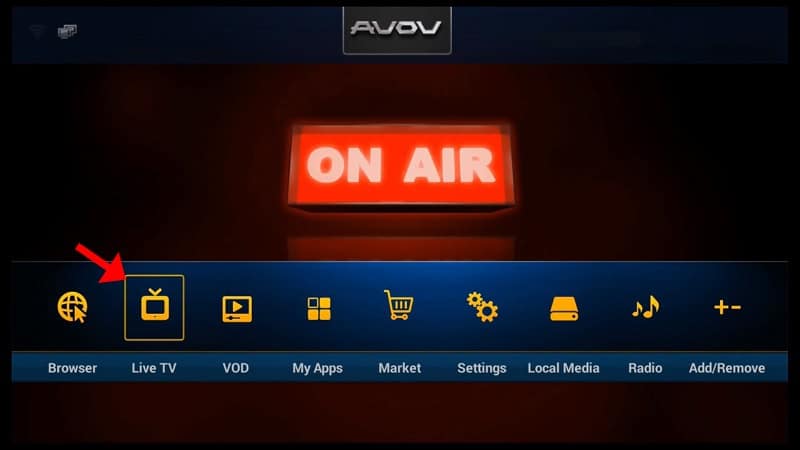
Step 1: Go to the main menu and click on the “Live TV” icon. If this is your first time using it, you will be taken straight to the section for server settings. If the section on server settings doesn’t show up on its own, follow the steps below.
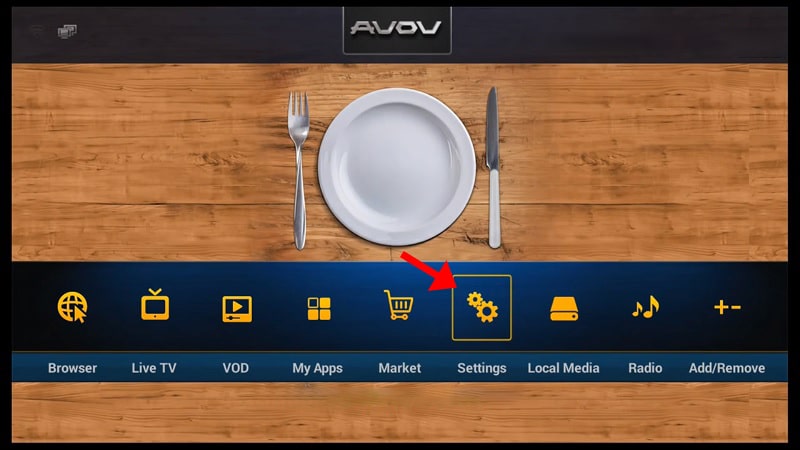
Step 2: Access the main menu and go to “Settings.”
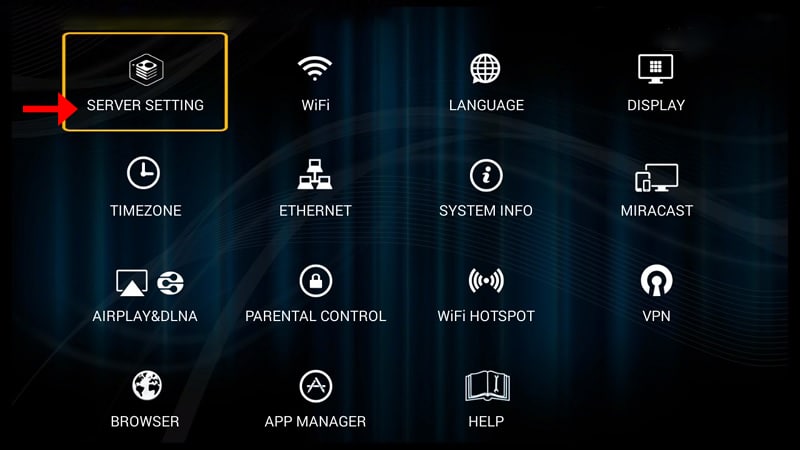
Step 3: Click “SERVER SETTING” and move on to the next part.
Step 3: In the “Server Name” field, type any name you want. Then, enter the portal address your IPTV provider gives you in the “Server URL” field. To make the link, click the “Connect” button after that. It is very important that the IPTV provider’s server has your device’s MAC address listed for connectivity to work.
Don’t forget that you can connect to the servers with a username and password in your m3u line as well. That being said, using the MAG portal is a simpler option.
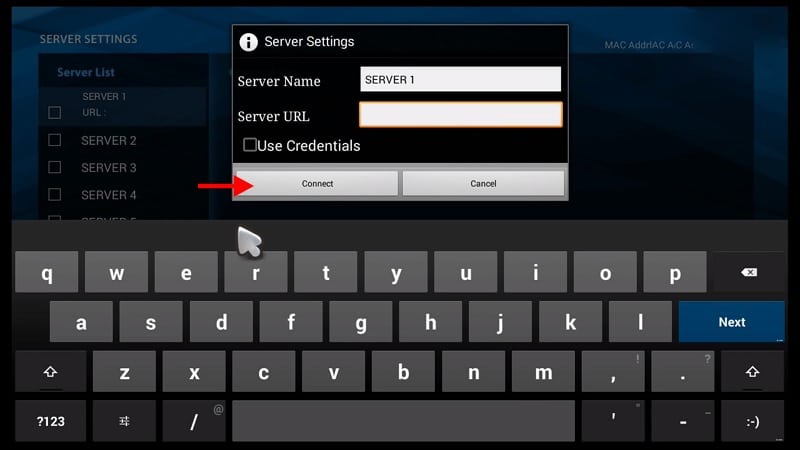
Step 4: You can now see that the channels are being added to your set-up box.
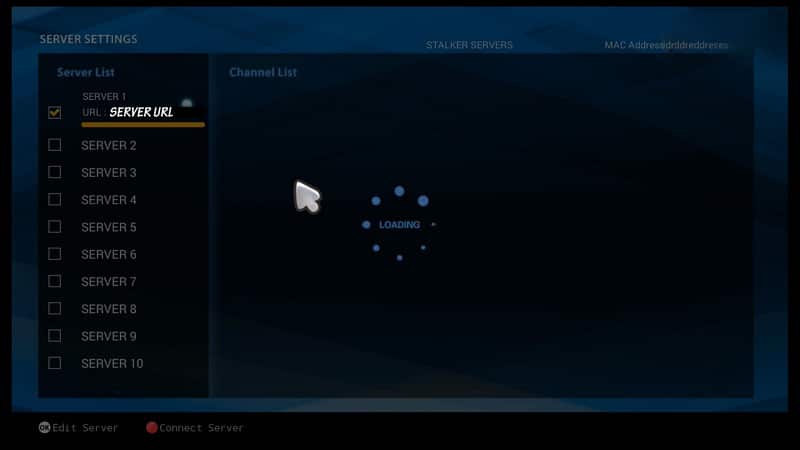
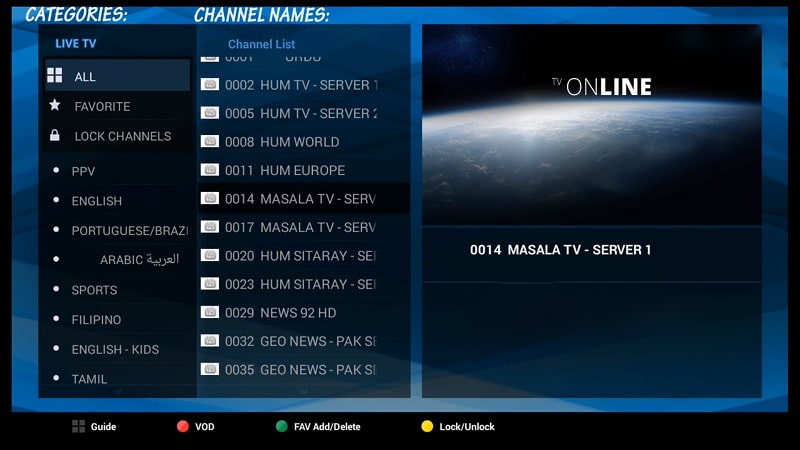
Step 5: Go back to the main menu and click on the icon that says “Live TV.”
Step 6: Click on any channel from the list to start watching live channels.
Feel free to tell us what you think about this article in the section below for comments. We care about what you think, and we value your input. Thank you ahead of time for taking the time to give your opinion.
 IPTVSKYPRO