


Perfected Player, an Android app, allows IPTV streaming on devices such as tablets, smartphones, and Smart TVs, mimicking a set-top box. It’s important to stress that this software does not come with any IPTV channels already installed. In order to add IPTV channels, users must add their own m3u playlists in the settings section.
The Perfected Player app works on Android, Linux, and Microsoft Windows.
Here’s the link where you can get this app:
https://play.google.com/store/apps/details?id=com.niklabs.pp&hl=en_US
How do I get IPTV channels to work with Perfect Player?
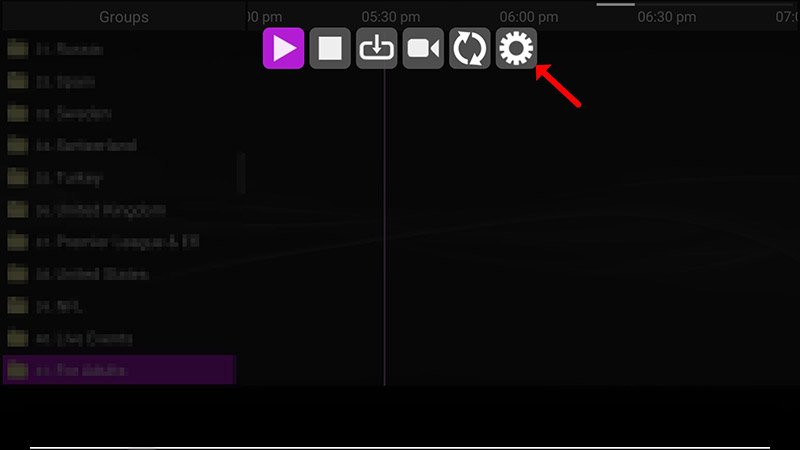
Step 1: Open the app once it’s been downloaded to your device. Click “Settings” in the main menu.
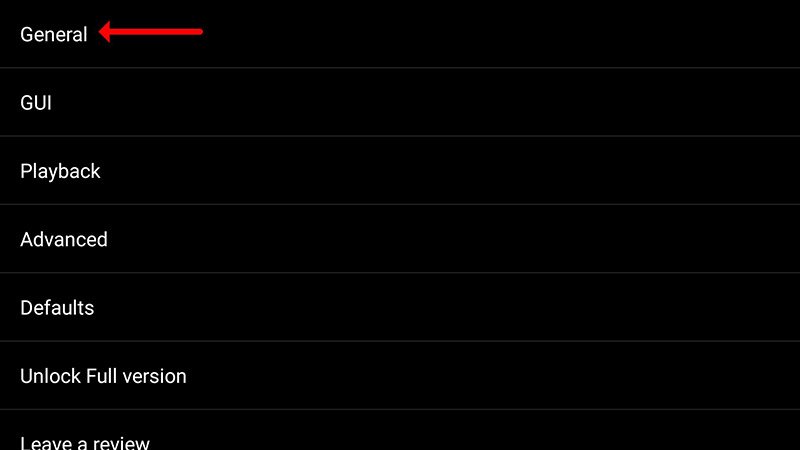
Step 2: Click “Playlist” under “General.”

Step 3: Type in your “M3U URL” and click “OK.”
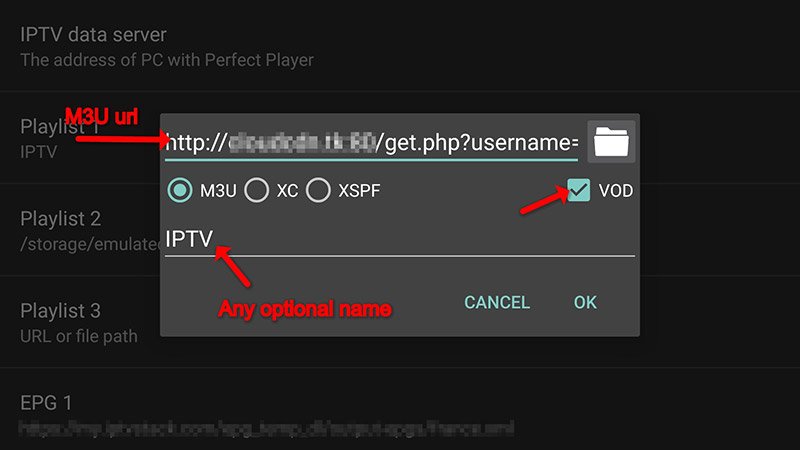
Step 4: Copy and paste the M3U URL that your IPTV provider gives you, then click on “GUI.”

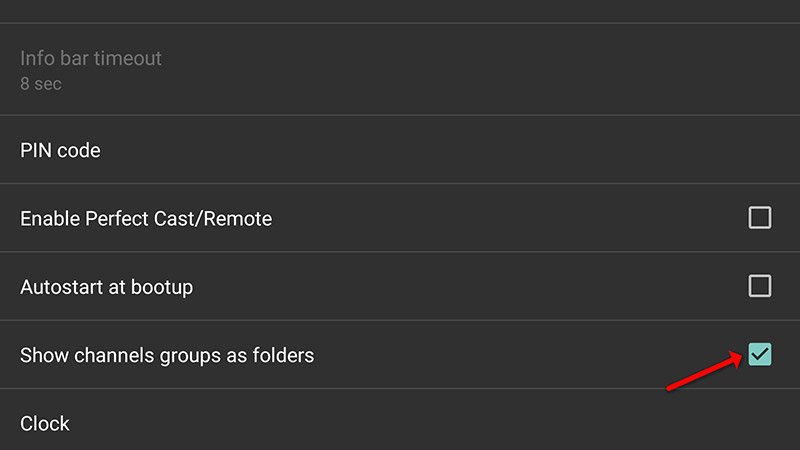
Step 5: Click on “Show channel groups as folders.”
Step 6: Go back to the main menu. From there, you can see how the Perfected Player app is adding and updating channels.
For the best playback quality, it’s worth mentioning that you should try out the different decoder settings in the settings menu, which will be explained in more detail below.
Playback Trouble
In the settings menu, click on “Playback.”

If you have trouble playing videos or music with Perfected Player, like stuttering or buffering, don’t worry—you can fix these problems. The app lets you pick the decoder type you want to use and change the buffer size to match.
There are different decoders you can choose from in the playback settings. It works best most of the time when the setting is left on “Auto.” You can choose “HW+” instead of “Hardware,” which is the next best option, if you have to. People whose connections are slow might find it helpful to choose “SW.”
When setting up a buffer, keeping things simple is best. The buffer size you can choose from is between 1 and 4. 1 is the smallest buffer size and 4 is the largest. You can greatly improve your viewing experience by changing these settings to suit your tastes and the state of your network.
Please feel free to get in touch with us in the comments section below if you need more help or have any questions. Please feel free to ask us any questions or voice any concerns you may have.
Article by iptvskypro.com
[…] 1: Click “Settings” once the Perfect Player has […]