

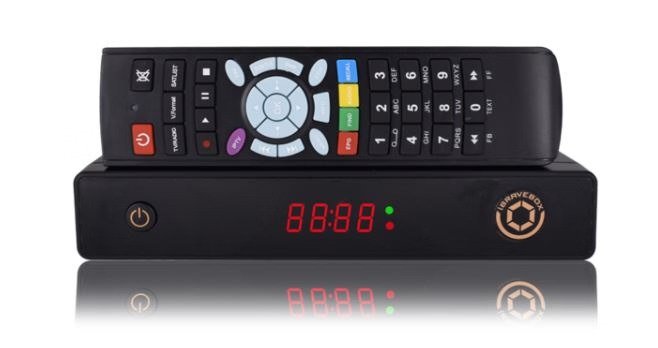
Let’s take a trip through the complicated world of technology as we look at how to add IPTV channels to your iBravebox F10S receiver. This device works in the same way that MAG boxes do, so setting up IPTV is similar to setting up MAG devices. Get ready to go through a maze of steps that, while detailed, will lead to a smooth IPTV experience in the end.
What you need to do to get IPTV on your iBravebox
Step 1: Click on the Multimedia tab (iBravebox)
Turn on your iBravebox F10S first. Choose “Multimedia” from the main menu. Once you get there, choose “Extream IPTV” from the list of choices.
Step 2: Choosing the right server (iBravebox)
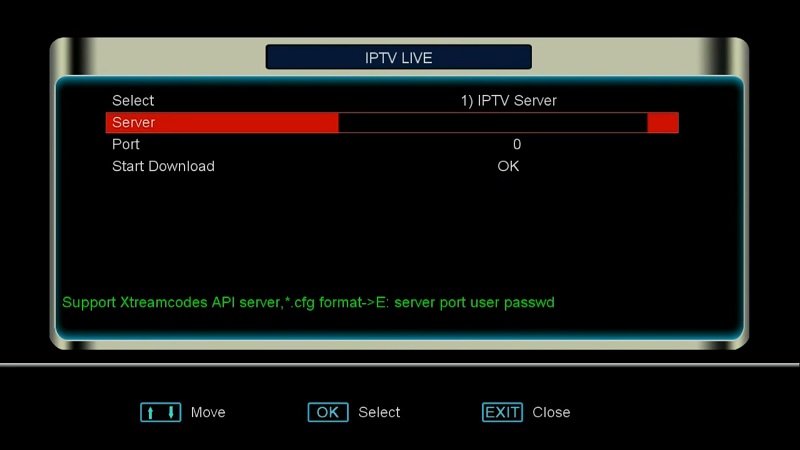
Next, go to the Extreme IPTV menu and click on the “Server” option.
Step 3: Type in the address of the portal
Now you will be asked to enter the portal address that your IPTV provider gave you. The address you give must be a MAG portal address, which in MAG devices is often called a Stalker Portal. When you’re sure you have the right address, click “OK” to confirm. How do I set up IPTV on my MAG Box?

Step Four: Type in the Port Number
Now, type in the port number that your IPTV provider gave you. Port numbers 8080 and 8181 are often used, but you should check with your provider to be sure. Type in the port number and move on.

Step 5: Setting up the IPTV MAC address
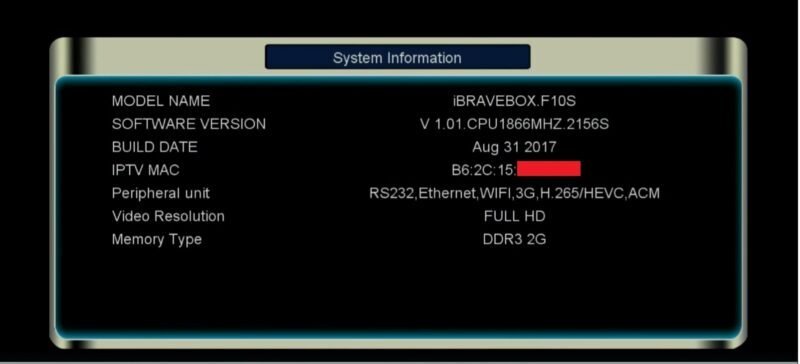
Select “System Information” from the “Plugins” tab in the main menu. The IPTV MAC address can be found here. In the dashboard of your IPTV provider, type in this MAC address. Take a break, and then go back to the Extreme IPTV section.
Step 6: Begin the download
Click on “Download” to begin. The device will start to get the list of IPTV channels. You can start watching the channels as soon as this is done.
Please feel free to tell us what you think about this article in the section below. We really value your opinion. Thank you ahead of time for your contributions!
[…] feel free to share your thoughts and experiences with IPTV Smarters in the box below. We’re here to help you more if you need […]
[…] The FormulerZ Boxes are equipped with both Mac and ID; the Mac can be found in the device’s catalogue or on its rear panel. The MAC address is presented in the following format: MAC Address: 00:1F:E8:AA:XX:XX. To convert it into the box ID, the first six digits must be substituted, resulting in the following format: ID: 00:1F:E8:AA:XX:XX. […]
[…] TV remote will take you to the LG Content material Store. To get it and set it up, look for the IPTV Smarters Professional utility. Pick model 1.0.8 to make sure it works with LG Good […]
[…] One may occasionally run into a situation where the channels being accessed on a VLC media player offer a wide variety of audio options. In particular, there are multiple language options available on the Nordic channels, giving the audience the freedom to choose from a wide range of languages. Take the wide range of linguistic repertoire that is available to oneself, for example. How can I use VLC to watch IPTV? […]
[…] plethora of formats, including M3U, along with an array of customisable options. The reach of this solution grows to include both Android and […]
[…] This tutorial is applicable to all Formuler box models featuring MYTV online3. […]
[…] programme guide. Electronic Guide to the Programmes You can always use the remote control for your IPTV device or TV to get to the EPG. The menus are shown that let the user see a list of TV shows that are coming up in the next few […]
[…] will employ Remote Playlists to configure IPTV in the GSE App; however, an alternative approach is available. What is the procedure for configuring IPTV on GSE […]