


IPTV Smarters: Watch movies, live TV, and catch-up on Windows
IPTV Smarters is a popular IPTV app for Android and iOS devices. It can now also be used on Windows devices. This means that you can enjoy more types of entertainment right on your Windows PC.
You can watch movies, TV shows, and catch-up TV as well as live TV.
IPTV Smarters does more than just offer live TV. It has an enormous collection of movies and TV shows that will keep you busy for hours. The Catch-up feature, on the other hand, is what really makes it stand out.
MAG devices used to be the only ones that could catch up. With IPTV Smarters , you can now be one of the few Windows apps that can do this. How do you catch up?
How to add IPTV channels to Windows IPTV Smarters
Step 1: As we already said, you can buy IPTV Smarters from their official website. Here’s the direct link to buy it: https://www.iptvsmarters.com/#downloads
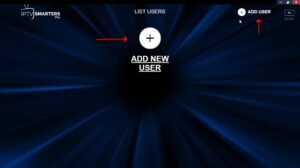
Step 2: Finally, after installing and starting the app, please go to the “ADD NEW USER” option.
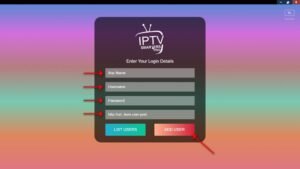
Step 3: Enter your credentials next. Choose any name you want in the first field. Then, easily type in the server URL, username, and password that you got from the M3U URL.er URL, username, and password that you got from the M3U URL. You can get your M3U URL from this page.
Click on ADD USER to start the process. Instructions on how to set up IPTV on IPTV Smarters on a computer
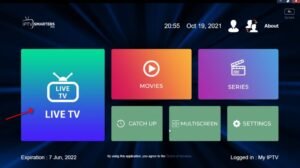
Step 4: Go to the “LIVE TV” section once you’ve logged in successfully.
The end date of your subscription will be shown at the bottom of the page at this point.
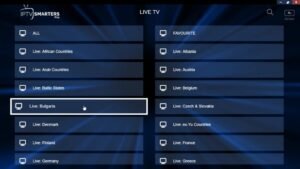
Step 5: Pick the bouquet and start streaming the channels you want to watch. Instructions on how to set up IPTV on IPTV Smarters on a computer
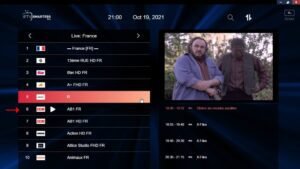
Features of IPTV Smarters
IPTV Smarters has a wide range of features that are meant to make your viewing experience better:
- Live Movies, TV Shows, and Series: You can watch live channels, movies, TV shows, and series, giving you a wide range of entertainment options.
- You’ll never miss your favourite shows with catch-up streaming, which lets you watch content whenever you want.
- Support: EPG: Electronic Programme Guide (EPG) support makes it easy to find what you want to watch and plan your viewing.
- Parental Control Built-In for Every Category: You can control what your kids see with parental controls built-in for every category. This way, everyone in the family can watch safely and in their own way.
- Integrated Powerful Player: Enjoy smooth playback with the integrated powerful player, which provides excellent audio and video performance.
- Support: Playing with External Players: Being flexible is important, so support for playing content with external players lets people choose what works best for them.
- More user-friendly and with an attractive and impressive layout: Enjoy an interface that looks good and is easy to use. It was made to make navigation easier and the app more useful.
- Support: Dynamic Language Switching: With dynamic language switching support, users can adapt their viewing experience to their preferred language, removing any language barriers.
Please feel free to share your thoughts and experiences with IPTV Smarters in the box below. We’re here to help you more if you need it.
[…] the scope of this discussion, we will explain how to set up IPTV in the GSE App using the Xtream-Codes API, as well as another way to do this. Through the Remote […]
[…] will demonstrate how to use STBemu on your device to watch IPTV in this tutorial. This tutorial also explains how to set up STBemu […]
[…] have provided a guide on how to download and install IPTV Smarters Pro for various devices, facilitating easier and quicker […]