

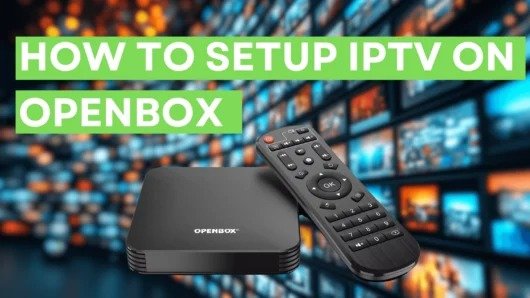
WebTV is the name of the well-known IPTV Player app for Openbox v8s. Adding a m3u file to your X v8s via USB flash drive is easy, and then you’re done! The work is finished. Nevertheless, there are two separate ways to make this setup work.
The first step is to use the standard method of uploading the file through the WebTV app menu. However, if this doesn’t work or if the “Read By USB” option is missing from the WebTV App page, you will need to use the Upgrade page, which is located in the Tools menu of X. What does M3U mean?
We suggest that you change the name of your m3u file to “WebTV.m3u” so that it works perfectly with the WebTV app. You only need to change the name to “WebTV” and keep the “.m3u” format. This change makes it possible for the WebTV app to properly recognise and handle the m3u files.
If you are having trouble watching the channels, you should restart both your Openbox and your Wi-Fi router. This step often fixes problems with connectivity and makes sure the viewing experience runs more smoothly.
How to make Openbox work with IPTVs
Step 1: Do these things:
1-Connect the USB that has the Web.m3u file on it.
2-Go to the menu
3-Go all the way to the right and press “Multimedia.”
4. Pick “WebTV” from the list.
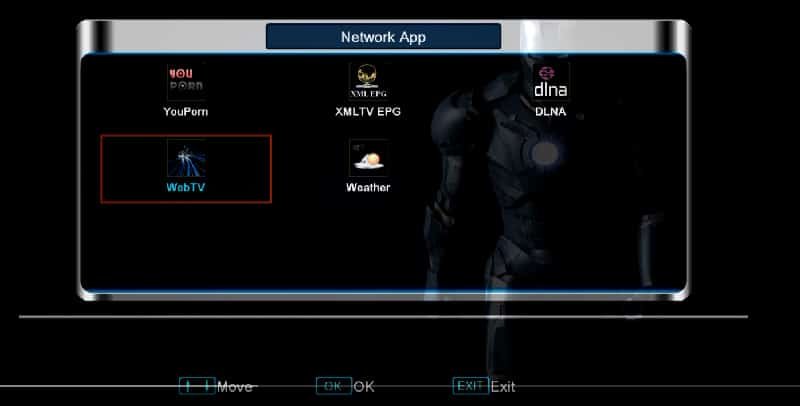
Step 2: If your channel list already has items on it, press the green “Del All” button to make sure it is empty. After that, press the yellow button to start the “Read By USB” feature. After that, the channels will show up appropriately for your viewing pleasure.
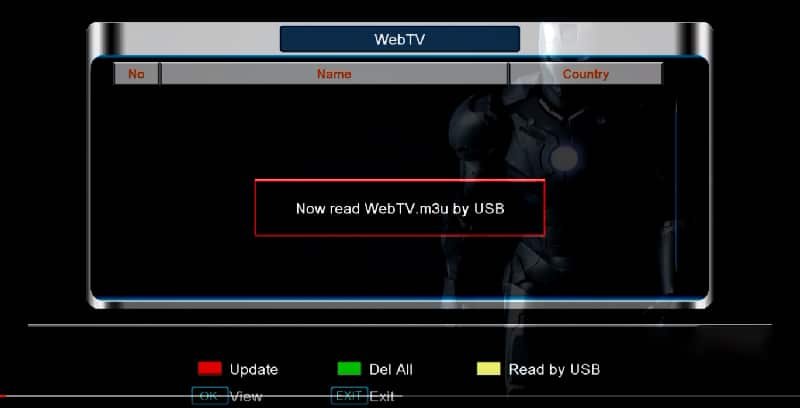
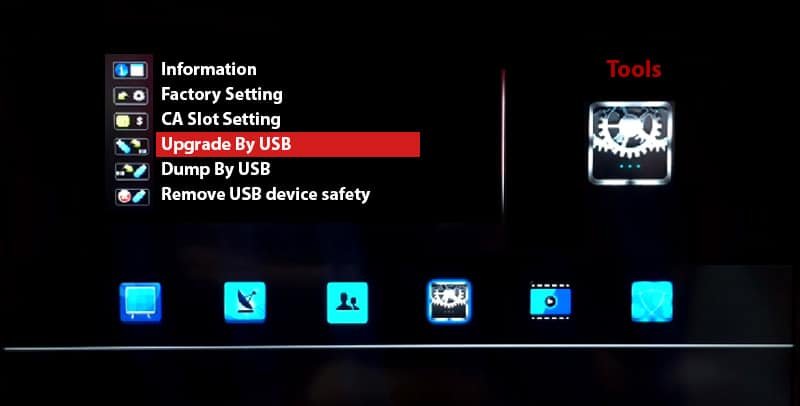
Step 3: Go back to the main menu and choose “Tools” if you don’t see the yellow “Read by USB” setting.
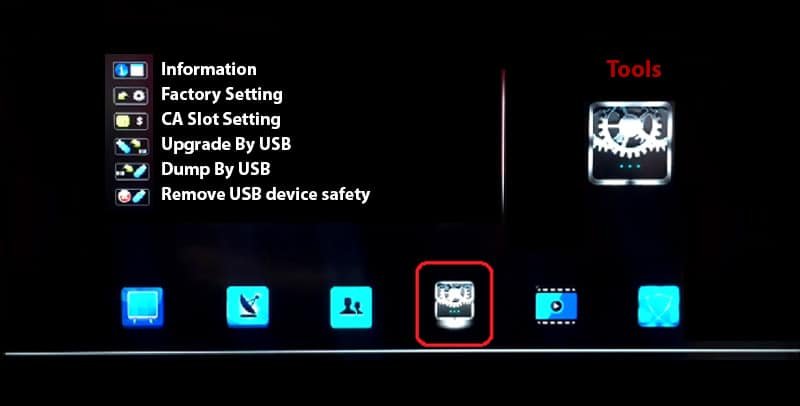
Step 4: Choose “Upgrade by USB” next.
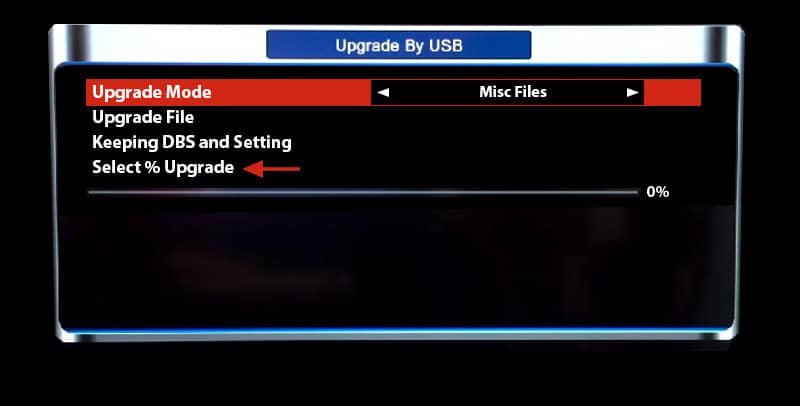
Step 5: On the next page, change the Upgrade Mode to “Misc Files.” Then, select “Select & Upgrade” at the bottom of the list. Press “OK” now.
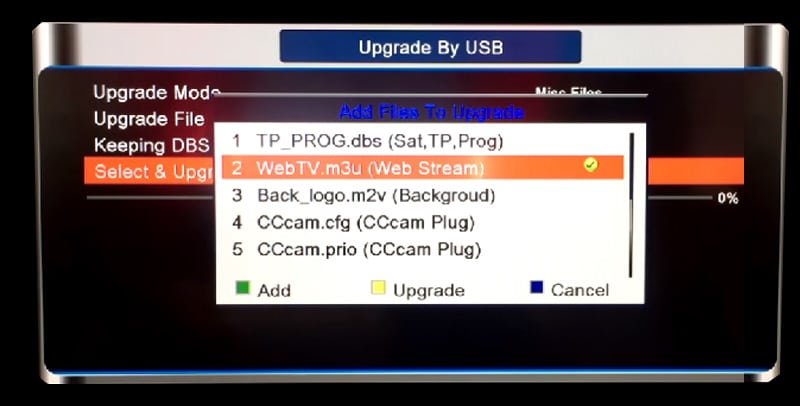
Step 6: In the next window, select “WebTV.m3u (Web Stream)” and make sure there is a green checkmark on the right side. After that, press the yellow button to start the process of upgrading.
The following are the device’s specs:
- MIPS processor with two cores and 600 MHz
- Flash 256M, ROM 400M, and DDR III 256M
- Demodulator for DVB-S2
- That it fully follows the rules of MPEG-4 H.264/AVC Main Profile Level 3 and High Profile Level 4.1
- It works with MPEG-2 MP@HL and MP@ML, MPEG-1 Layer I, II, and III, and digital audio (AC3).
- Satellites in the C/Ku band can receive SCPC and MCPC signals.
- It supports DiSEqC1.0/1.1/unicable/1.2/1.3 (USALS) and has multiple LNB-switching controls.
- NIT search is available
- It works with MPEG-5
- Supports Teletext and DVB subtitles in multiple languages
- Channel scan options, both automatic and manual
- Automatic check for service
- Time to switch channels less than one second
- On-Screen Display (OSD) that works with skins and is available in many languages
- You can choose from English, French, German, Italian, Spanish, Swedish, Danish, Greek, Portuguese, Finnish, Dutch, Turkish, and Czech in the on-screen menu (OSD).
We’d like to hear your thoughts and questions about this article. Please tell us what you think in the section below the comments. This will help us make our content better. Thanks for your thoughts.
[…] on ADD USER to start the process. Instructions on how to set up IPTV on IPTV Smarters on a […]
[…] in functionality mandates an initial configuration, and for those unversed in the nuances of IPTV box setup, navigating through the configuration phase might prove perplexing. It warrants mention that even a […]
[…] 1: Acquire the GSE IPTV application from the Google Play Store, then choose Remote Playlist from the […]
[…] steps will help you set up IPTV on your Apple […]
[…] settings,” click “Portal URL,” and type in the Portal address that your IPTV distributor gave […]