

The SS IPTV player is a flexible, free one that can stream multimedia content over the internet or in local networks. This app works perfectly with many IPTV service providers’ services, and it even lets users make their own personalized IPTV playlists. Want to know how to set up IPTV on your Smart TV using the Smart IPTV App (SIPTV)?
Use the SS IPTV app
IPTV channels can be streamed on various TVs, including those made by LG, Samsung, Philips, and Sony, thanks to this cutting-edge app. We go into more detail about how to install each brand below. But first, let’s talk about what Internet streaming means.
LG:
The official LG Smart World platform, which is available all over the world, makes it easy to install SS IPTV on LG Smart TVs.
Samsung:
SS IPTV can be set up using the official Samsung Smart Hub, which is available all over the world and works with models from the D series and up.
Philips:
Just type “app.ss-iptv.com” into your Philips TV’s browser’s address bar to start the app.
Sony:
Since the app is still being tested in beta on Sony Smart TVs, its full functionality may not be guaranteed. However, it can be used on Sony Smart TVs made after 2013 models.
This detailed guide is meant to make it easy to connect SS IPTV to your Smart TV, giving you access to a world of exciting multimedia content.
SS IPTV: How to add IPTV channels
Step 1: Press the “Settings” button on the main screen to add a user playlist.
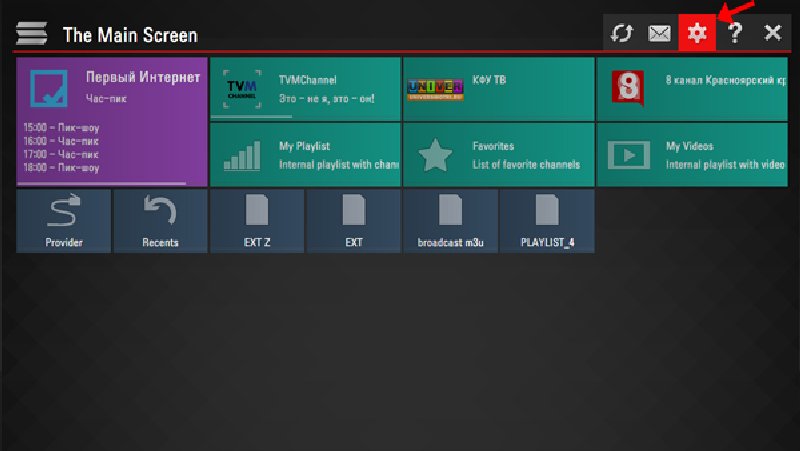
Step 2: You can upload your playlist in two different ways.
- Adding via link (external playlists)
- Adding files with a temporary access code (internal playlists)
There is only one internal playlist with live channels and one with VoD streams (films). The user can have as many external playlists as they want.
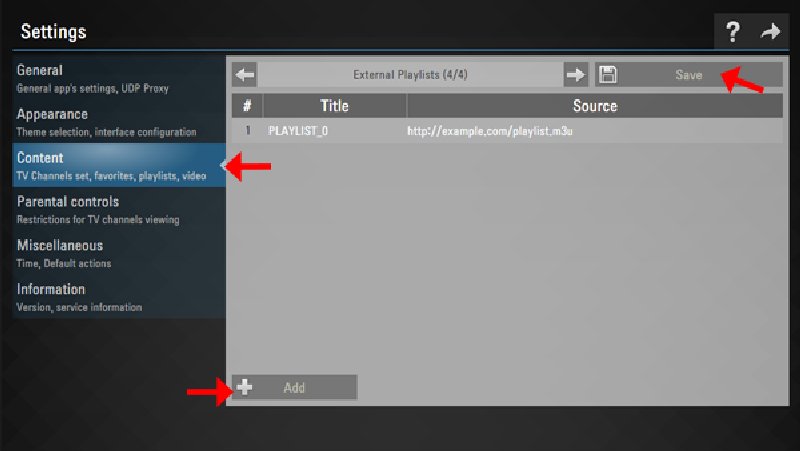
To add a playlist by linking to it, go to the app’s settings and find the Content section. Then, go to the section called “External Playlists” and tap the “Add” button at the bottom of the screen. Type in the name you want for your playlist and then paste the link to it into the appropriate field. Last, to make sure, click the Save button. Now, your playlist will show up as a separate tile on the Main Screen.
To use SS IPTV to set up IPTV on your Smart TV, do the following:
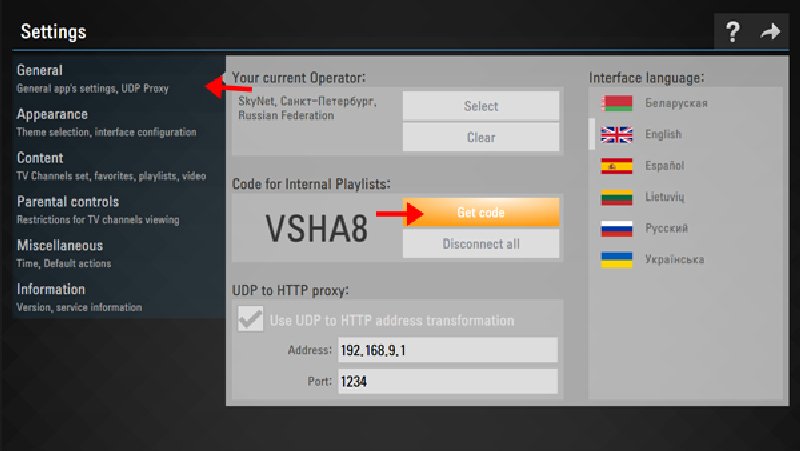
Step 3: If you wish to import a playlist with a temporary code, access the General subsection in the app’s settings. Then, click on the Get Code button. Keep in mind that the temporary code is only valid for 24 hours or until you generate a new one.
This process makes sure that the SS IPTV application makes it easy to add IPTV services to your Smart TV.
Step 4: Go to http://ss-iptv.com/users/playlist and enter the code you were sent. Then, click the “Add Device” button.
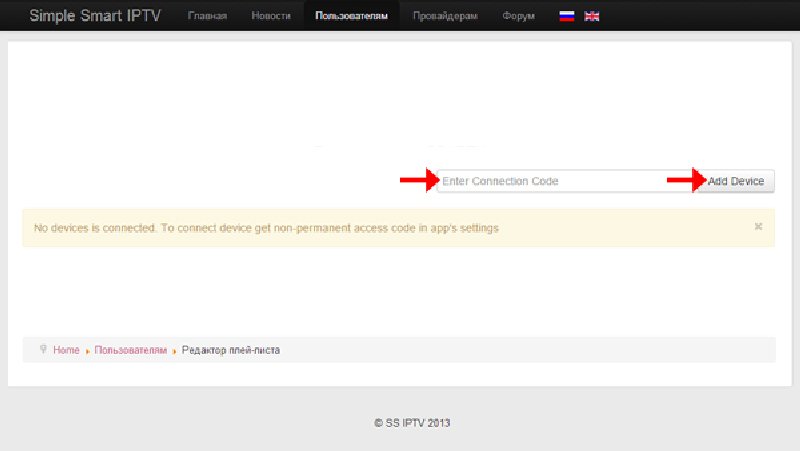
Step 5: Once the connection was made, choose the playlist file on your computer and press the “Save” button to send it. Tile “My playlist” on the Main Screen will let you get to the internal playlist.
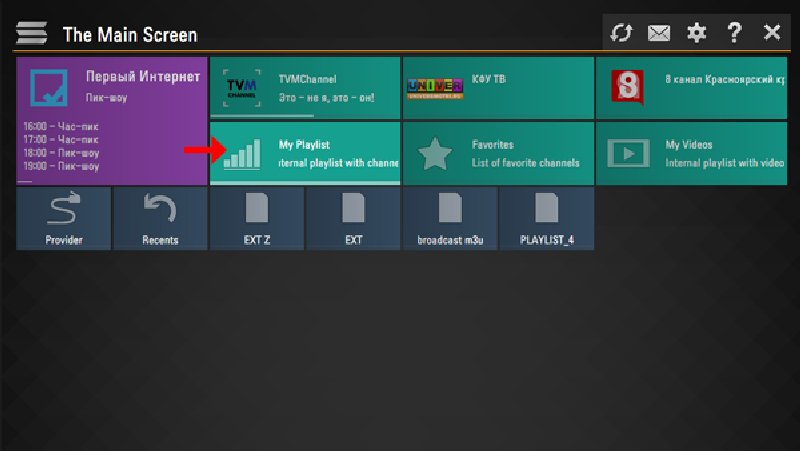
The older playlist has been replaced by a new one that was uploaded.
Please let us know what you think about this article. Feel free to say what you think in the section below for comments. We really value your opinion. Thank you ahead of time for your contribution.
[…] your Samsung Smart TV remote, press the Smart HUB button, then search for IPTV Smarters Pro to locate the application. […]
[…] can start setting up VLC once you have downloaded and installed it on your […]