

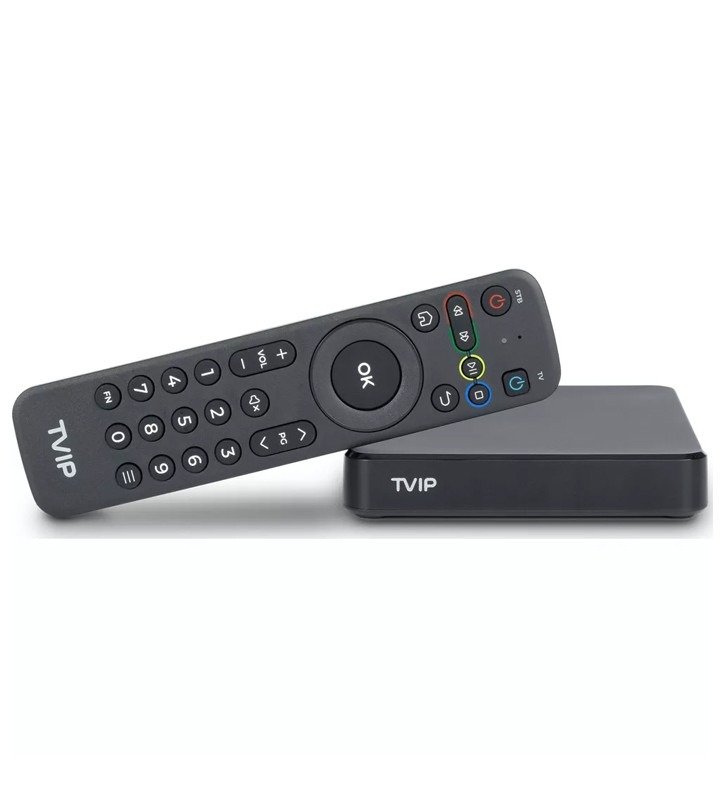
How to set up TVIP Box for IPTV?
This guide is for people who have newer TVIP boxes, like the 605 or 615 models. If you have an older model, like the 410, you need to either update the TVIP console’s operating system or use a guide that is made for older models.
Following the initialisation of the TVIP Box and setting of basic settings such as time and language, go to the main menu and scroll down until you find “Settings.” From there, choose “Television,” as shown in the image below.
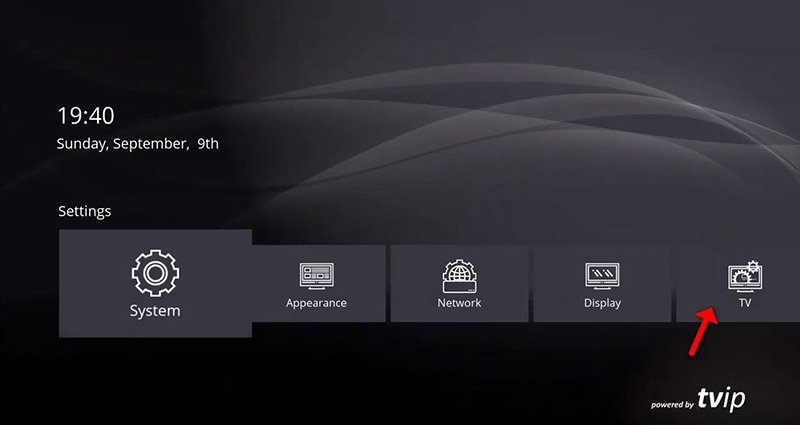
Step 2: Alter the content source to “Internet portal” and commence the “Internet portal setup.”

Step 3: First, set the API Mode to “MAG,” then enter your portal server address in the specified field (this information can be obtained from your IPTV distributor), and finally click “Apply” and “Restart.”
In the absence of the “MAG” API option in your settings, please utilise the “GSTB” API.
Thereafter, the device’s MAC address must be associated with your IPTV dashboard or submitted to your IPTV provider. Progressive IPTV providers furnish a dashboard that allows users to autonomously incorporate MAC addresses into their lines.
The MAC address of the TVIP Box is located on its posterior side.
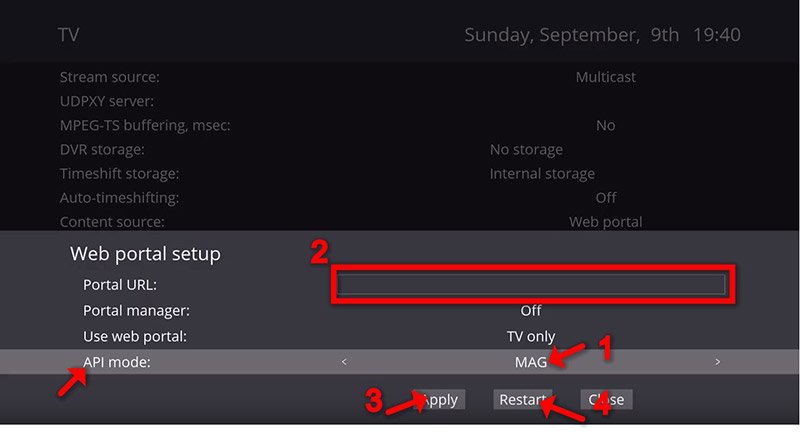
Step 4: After the system reboot, access “Watch Television” in the main menu and wait for your playlist to load via the portal. This process may require several minutes.

Step 5: Upon completion, the channels will automatically become available, enabling you to select your preferred channel and initiate streaming.
Integrating IPTV channels into the TVIP Console using M3U URL:
In Phase 2 of the specified guide, change the content source to “M3U playlist” and proceed to configure the “M3U playlist.”
Input the M3U URL supplied by your IPTV provider and select “Apply,” then click “Restart.”

Instructions for incorporating IPTV channels into the TVIP Box (Legacy version)
Step 1: Begin at the main menu and choose “Settings” as depicted.
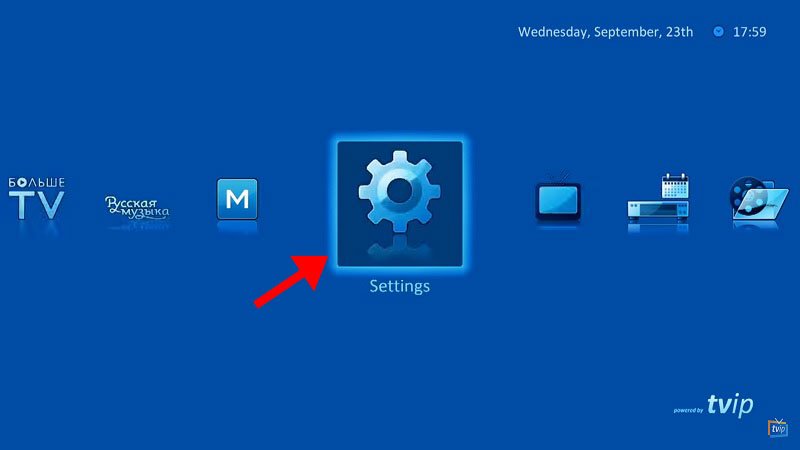
Step 2: Choose the “Television” icon from the right menu, then modify the Content Source to “Internet portal” and commence the “Internet portal setup.”
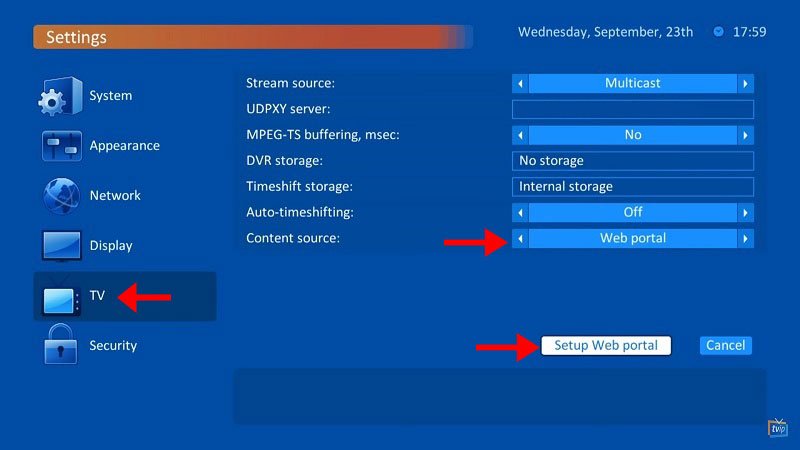
Step 3: Enter your portal server address in the specified field and select “Apply.”
Thereafter, the device’s MAC address must be associated with your IPTV dashboard or submitted to your IPTV provider. Progressive IPTV providers furnish a dashboard that allows users to autonomously incorporate MAC addresses into their accounts.
The MAC address of the TVIP Box is located on its posterior side.
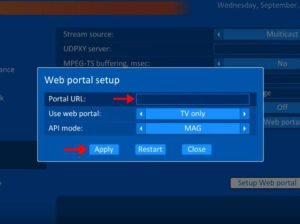
Step 4: After inputting your portal server address, wait for the portal to load your playlist. This process may require several minutes.


Unique Characteristics of the TVIP Box:
Under the aegis of the intermediary product TVIP.
Functions through an intermediary IPTV portal.
Within the scope of the intermediary product ‘Stalker’ purse.
Configurable intermediary product through C++ API.
Facilitates M3U playlists without the need for an intermediary product.
Furnished with a media player that facilitates USB and LAN media playback.
Configurable intermediary product through HTML5/JavaScript API.
Tailorable Android APK for clients.
Facilitates Windows sharing via Samba.
Facilitates external USB and SD card connectivity.
Compatible with the following file systems: FAT16/32, NTFS (read-only), NFS, ext2, and ext3.
Facilitates streaming media protocols: RTSP, RTP, UDP, IGMP, and HTTP.
Enables timeshift capability through the use of a USB drive or SD card.
Comprises TV Guide EPG support: XMLTV and JTV.
Features AIR MOUSE compatibility.
Powerful Processor:
TVIP media centres consistently integrate advanced SoCs featuring powerful multi-core CPUs, enabling users to access a variety of current and future multimedia applications.
Universal Serial Bus Support:
All TVIP S-Box variants possess USB-host connections, allowing the connection of flash drives, HDDs, keyboards, and wireless remotes, thereby enabling direct video or music playback from external storage devices. This constitutes a significant enhancement to your service.
The TVIP S-BOX is compatible with various media formats, including AVI, MKV, and MP4, and supports multichannel audio and subtitles.
Superior Wireless Connectivity:
A multitude of options exists across almost all media centres:
- WiFi 2.4 GHz
- WiFi 2.4/5 GHz
Intuitive Remote Controller:
Effortless and dependable, fabricated from resilient plastic with supple rubber buttons.
The setup is efficient and uncomplicated, with the remote facilitating educational features for television control. The learning configuration remains intact following battery replacement.
[…] 5: Pick the bouquet and start streaming the channels you want to watch. Instructions on how to set up IPTV on IPTV Smarters on a […]
[…] can use 0000, 1234, or 1122 to get into adult content on your Smart TV […]
[…] structure. – Help with dynamic language switching.We’ve talked about two ways to set up IPTV channels on IPTV Smarters. Be at liberty to interact in conversations with us within the […]
[…] The most common method involves downloading the SIPTV App (Smart IPTV App) to your TV and uploading your M3U playlist to the SIPTV website using your TV Mac address. How can I use the Smart IPTV App (SIPTV) to set up IPTV on my Smart TV? […]
[…] 1: Find the Smart STB App in your smart TV’s app catalogue. Get the app from the app store and put it on your […]