


VLC is the best choice for users who want to stream IPTV channels. The VideoLAN initiative is responsible for making the VLC multimedia player, which is a free, portable, multi-platform media player and streaming media server. VLC is widely used and can be found on desktop computers and mobile devices running Android, iOS, Tizen, Windows 10 Mobile, and Windows Phone.
We will talk about how to record live broadcasts on VLC in this instructional piece. This informative article will also go into more detail about how to set up IPTV channels on your computer using VLC. In what way can live broadcasts be recorded on the VLC media player?
You can start setting up VLC once you have downloaded and installed it on your computer.
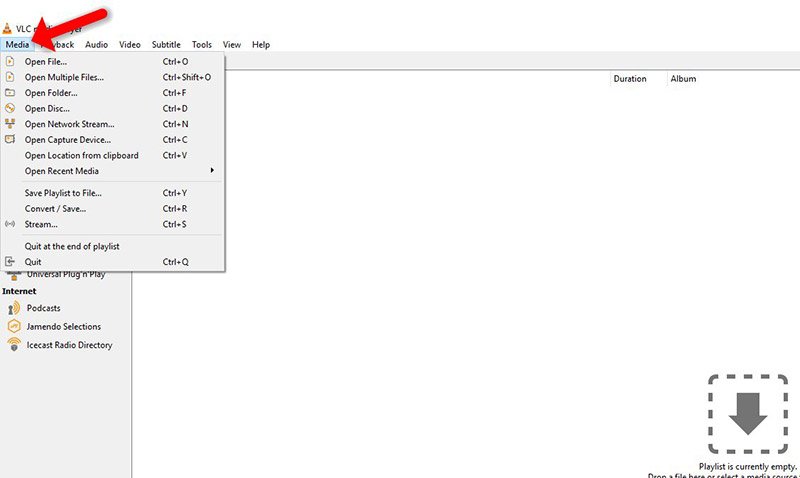
Step 1: Upon opening the application, select “Media.”
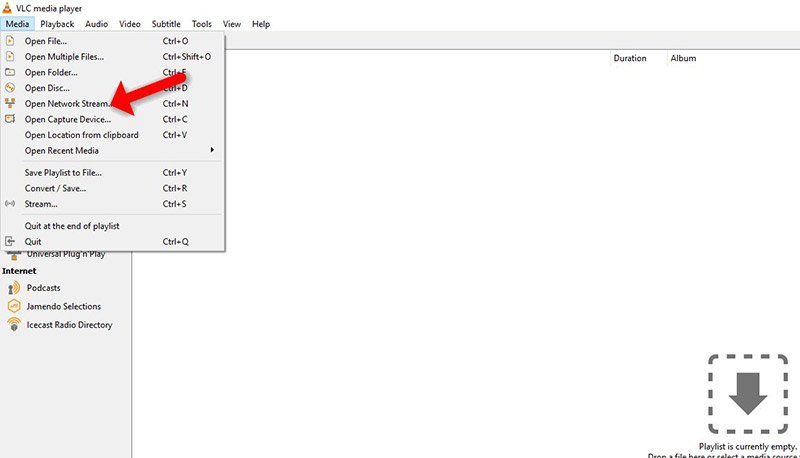
Step 2: Select the “Open network stream.”
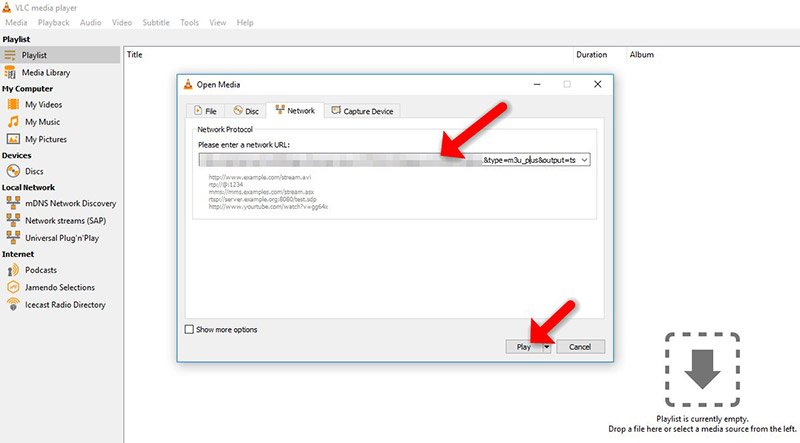
Step 3: Input the M3U URL supplied by your IPTV provider and select “Play.”
Note: Progressive IPTV providers give you a dashboard where you can make your M3U URL of choice.
Step 4: Now that your playlist is ready, To get to the playlist, press CTRL+L at the same time.
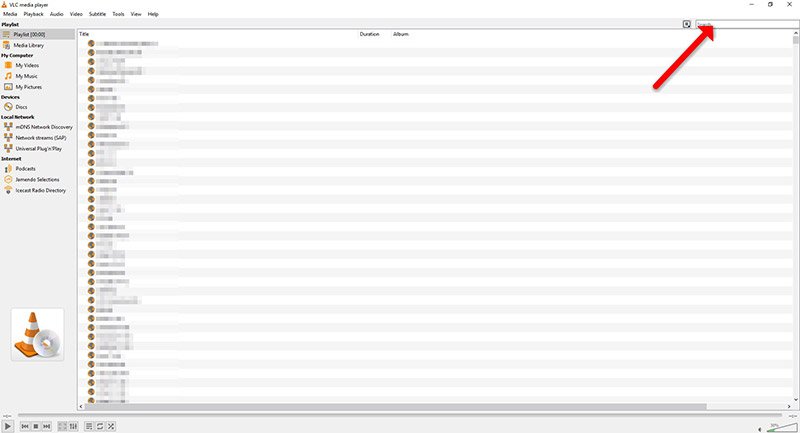
You can pick or look for the channel you want to watch and then start watching live TV…
[…] One of the best IPTV streaming tools is VLC, known for its versatility and power. From the VideoLAN project, the open-source and free VLC media player serves as a portable, cross-platform media player and streaming server. This exceptional app is compatible with Android, iOS, Tizen, Windows 10 Mobile, and Windows Phone. This guide will explain how to capture live broadcasts with VLC. How to setup IPTV on VLC media player? […]
[…] lot of different devices can use EPGs, like smart TVs, digital video recorders (DVRs), streaming media players, and cable or satellite […]
[…] 1: Launch the IPTV app. In the IPTV app, you have the option to add IPTV lists. “Xtream-Codes Account” and […]
[…] A lot of different devices can use EPGs, like smart TVs, digital video recorders (DVRs), streaming media players, and cable or satellite […]