

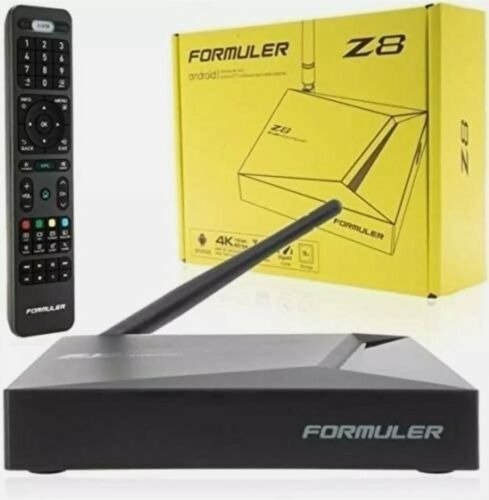
FormulerZ consoles are distinguished as superior devices for accessing IPTV content. Their primary attributes include proficiency in supporting both MAC-based Portal Systems and M3U-based Playlists.
The premier model among Formuler consoles, Formuler Z8, features the advanced MYTV Online 2 application, enabling effortless 4K Ultra HD streaming. This guide aims to clarify the procedure for integrating IPTV channels into MYTV Online 2 on both Formuler Z8 and Formuler Z10 consoles.
Methods for integrating IPTV channels into your Formuler Z8
This tutorial is applicable to all models of Formuler boxes, including the Formuler Z8+ and Formuler Z10.
Step 1: Initiate the proprietary application intended for IPTV viewing on Formuler devices, referred to as “MYTV Online 2.” If this application is not presently installed on your device, you may obtain it from the Google Play Store.
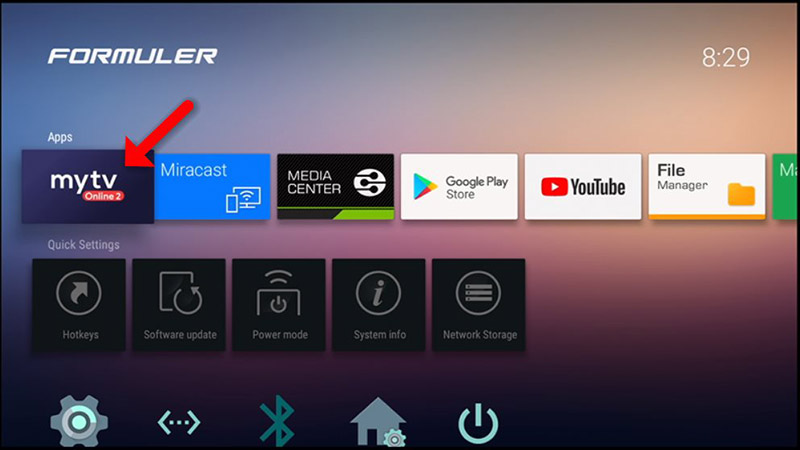
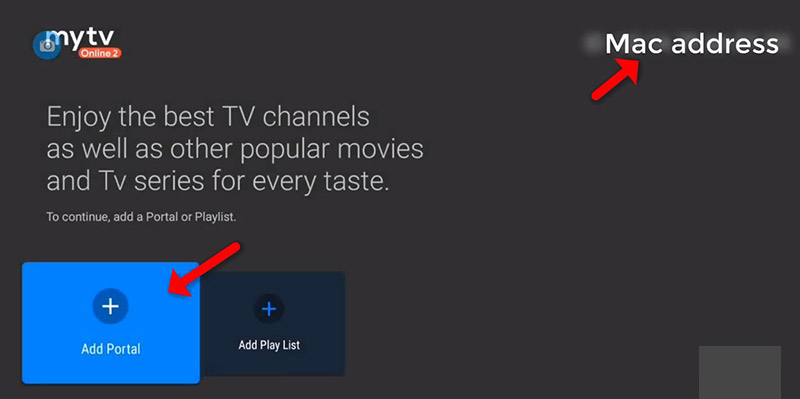
Step 2: The MAC address of your device is located in the top-right corner of this page. It is essential to furnish this MAC address to your IPTV provider. Certain progressive IPTV providers offer a dashboard for managing IPTV settings, allowing you to enter the MAC address associated with your subscription.
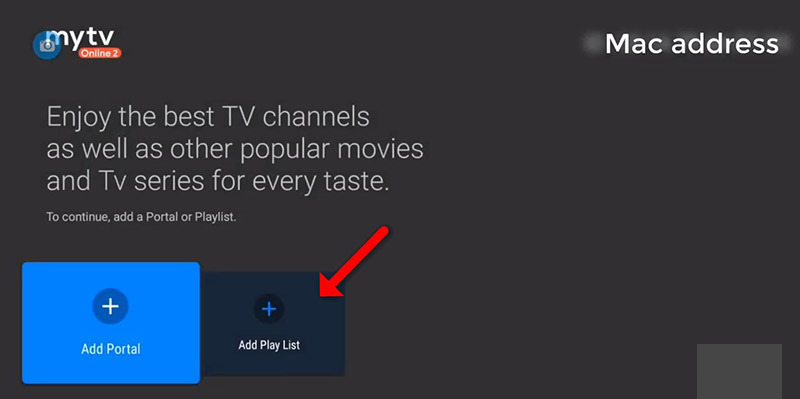
Presented below are two alternatives. Select “Add Portal” to set up the device as a MAC-based unit similar to MAG boxes.
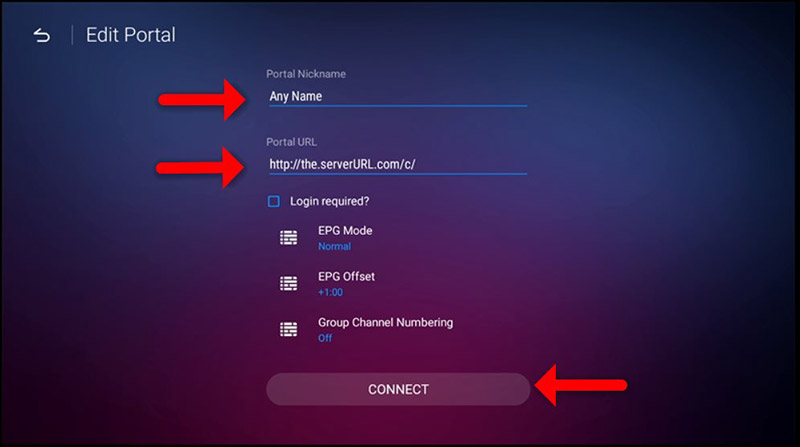
Step 3: Enter a Portal Nickname (e.g., MYIPTV).
Enter the IPTV Portal URL obtained from your IPTV provider, then click on “CONNECT.” If you have not yet obtained the portal URL, you may request it from your IPTV service provider.
Step 4: Connection Established Successfully! You gain access to all channels linked to your subscription.
Kindly be advised that this may require some time.
Instructions for configuring Formuler Z8 with MYTV Online 2 utilising an M3U URL
Step 1: Upon launching the MYTV online application, you are presented with two options.
To configure the Formuler Z8 utilising an M3U URL, you must select “Add Playlist” in this location.
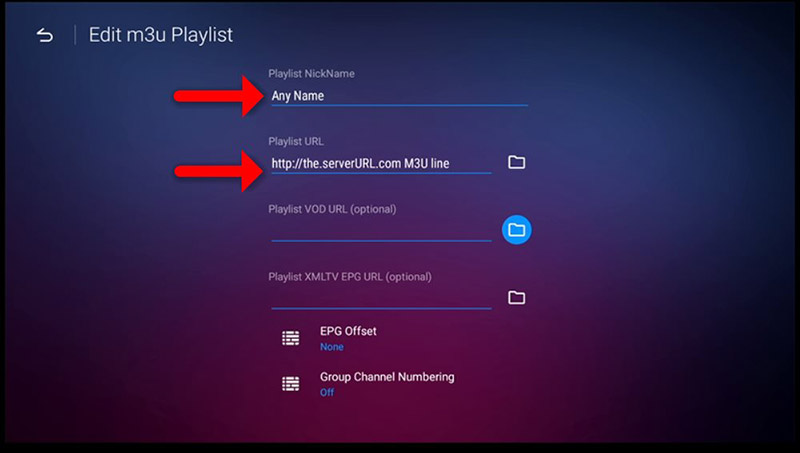
Step 2: Input Playlist Nickname (e.g., MYIPTV).
Input the M3U URL supplied by your IPTV provider, then select “CONNECT.” Certain progressive IPTV providers furnish a dashboard for the management of IPTV settings, allowing access to your M3U URL.
Important: If you include an M3U with Options URL in this section, it is unnecessary to add VOD or EPG URLs individually. For additional support, please contact your IPTV provider.
Step 3: All preparations are complete, and you may now begin viewing Live TV. Kindly note that this process may necessitate a brief interval.
 IPTVSKYPRO